Getting started
What you need, how to install it, the first connection with the radio
What it is
IJV Display is an app for Android phones. It turns the phone into the big display of the radio: what the radio receives with a module comes through the USB cable and the phone shows it. The app is free: you only need an IJV account, the RadioManager one, of any level. Only the map for the radio is for PRO accounts.
| On the radio | On the phone |
|---|---|
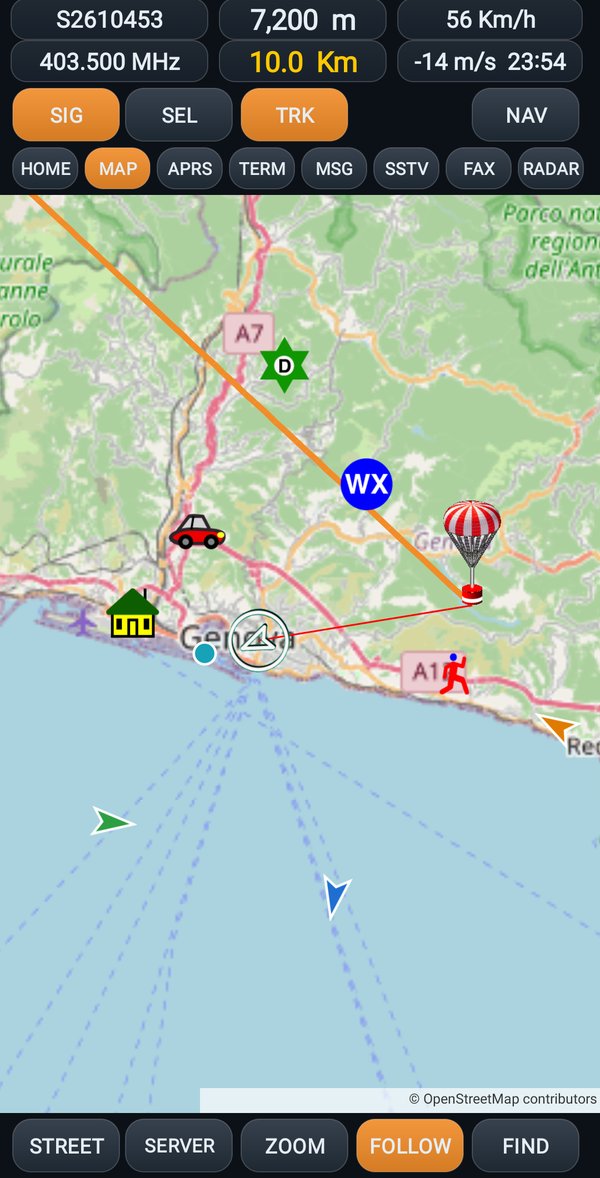
| RS41 (weather sondes) | the sonde on the map, with altitude, speed and where it will land |
| APRS | the stations on the map and in the APRS list, the APRS messages |
| AIS (ships) | the ships on the map, with the nautical chart |
| RTTY, CW Decode, NAVTEX | the text in the terminal |
| AirACARS, DSC ATIS | the messages from planes and ships |
| SSTV | the pictures live and the gallery; and the picture to send to the radio |
| WEFAX | the weather fax line by line |
| Radar | the stations of the Radar on the map |
What you need
- A phone with Android 7.0 or newer with USB OTG (almost all phones today have it).
- An OTG cable: on one end the plug for the phone (USB-C or micro USB), on the other end the USB-C plug for the radio. Careful: not all cables carry data, some only carry power.
- A radio with the V6 firmware and the USB module. To send pictures, coordinates and maps to the radio, the radio must be updated with FLASH V6 in RadioManager.
- Internet is only needed for the map (it downloads in pieces while you look at it), for the first login, for SERVER and SHARE and to make the map for the radio. Everything else works without a network too; but the map stays grey in the places you have never looked at.
Installing the app
- Download the app file (IJVDisplay-1.8.apk, a file that ends with .apk) to the phone.
- Tap it. Android asks if you allow installing apps from that source: answer yes.
- Tap Install. At the end the IJV Display icon is among your apps.
The first login
Only the first time you open the app does it ask for the account.
- Write the email and the password of your RadioManager account.
- Tap SIGN IN. From now on the app remembers you.
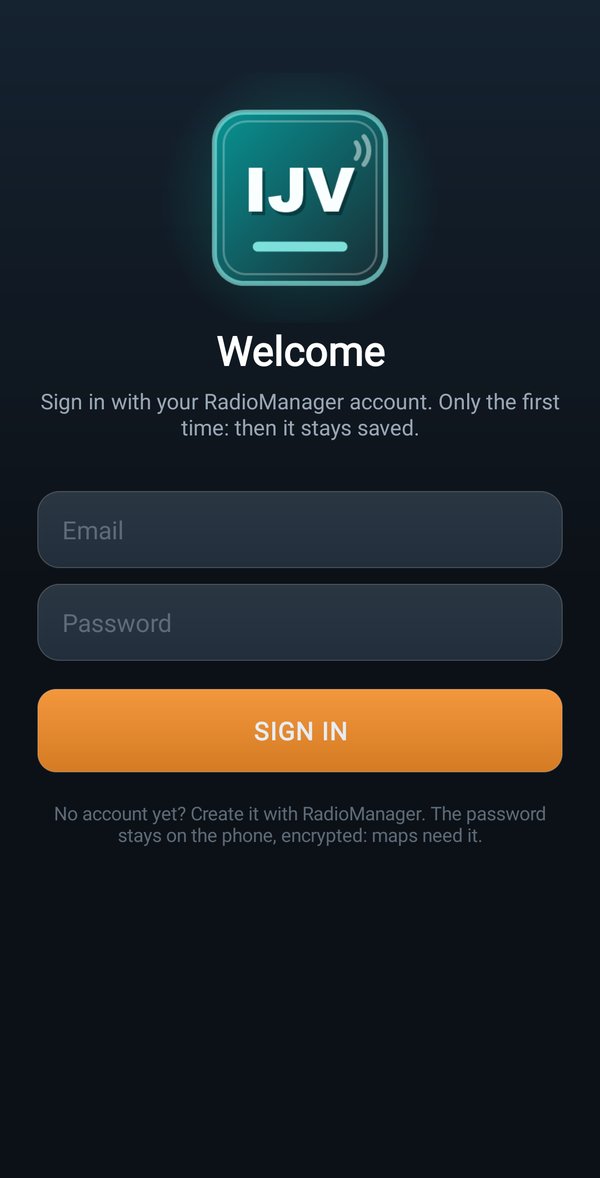
You don't have an account yet? You create it with RadioManager, on the computer. The password stays in the phone, encrypted: it is needed for the map for the radio.
On the radio: turning on the output to the phone
The radio sends data to the phone only if the module is open and its serial output is on.
- On the radio open the module (for example RS41).
- Hold down MENU: the output page opens.
- Press the number of the item that sends the data over the cable (table below). The radio goes straight back to the module.
| Module | Item to choose | Sheet |
|---|---|---|
| RS41 | 4 DATA OUT SERIAL | RS41 |
| APRS, AIS, RTTY, CW Decode, NAVTEX, AirACARS, DSC ATIS, Radar | 2 SERIAL 38400 | APRS, AIS, RTTY, CW, NAVTEX, ACARS, DSC, Radar |
| SSTV | 2 SAVED PICTURE (the picture when it is finished) or 3 LIVE HI-RES (the picture while it arrives) | SSTV |
| WEFAX | 2 LIVE (every line as it arrives) | WEFAX |
The first connection
- Turn on the radio with the module open and the output on.
- Connect the cable between the radio and the phone. Android asks which app should open the radio: choose IJV Display.
- The app asks for permission to use the USB: tap OK. Without this permission the app does not see the radio.
- The app also asks for the location permission: give it, it is needed for your home on the map, the distances and the compass. Without it, the app works anyway but does not know where you are.
- The app recognizes the module by itself and opens the right view: with RS41 the map, with RTTY the terminal, and so on.
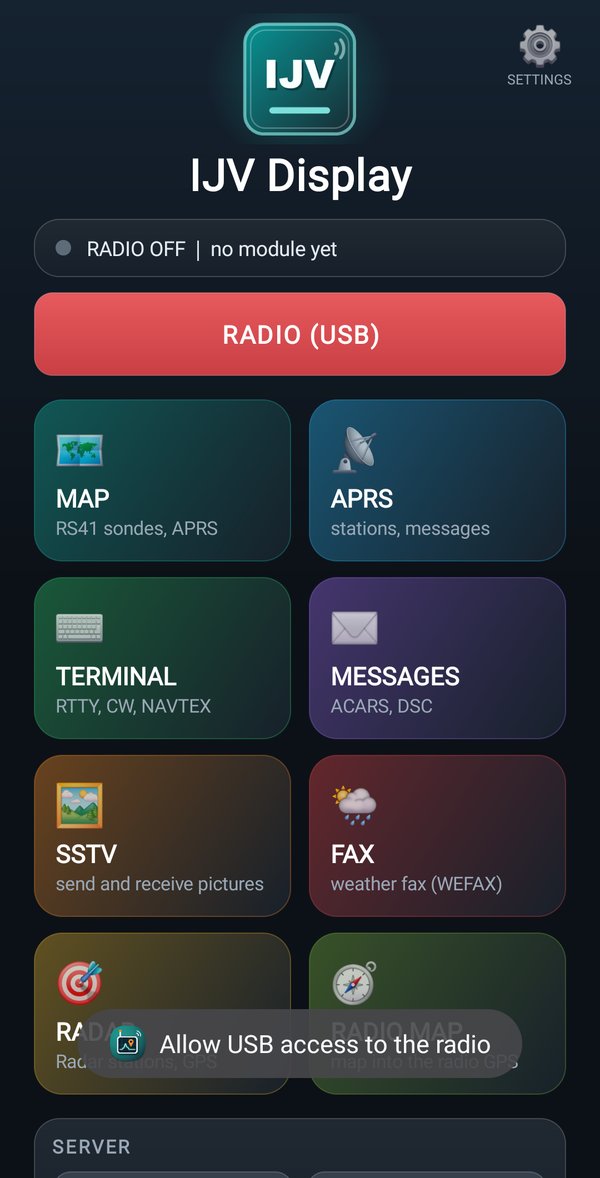
If the app was already open, or does not open by itself, tap RADIO (USB) on the home page.